Tuesday, 13 March 2012

How To Create Primary key In Sql Server 2008

Primary Key:

      Primary Key Means Unique And Not Null.

      A primary key is a special case of unique key. Primary keys may consist of a single attribute
 or multiple attributes in combination. And it’s unique, what the difference from the unique key is
 the primary key cannot be NULL, and primary keys must be defined by using another syntax.

Syntax:

  CREATE TABLE student
  (
      Student_Id int NOT NULL PRIMARY KEY,
      LastName varchar(255) NOT NULL,
      FirstName varchar(255),
      Address varchar(255),
      City varchar(255)
    )

How to Add Primary Key For Existing table:


             ALTER TABLE Persons
             ADD PRIMARY KEY (Person_Id)
 
     Here Persons is the Table Name And Person_Id is the Column name.

How to DROP a PRIMARY KEY Constraint:

          ALTER TABLE Persons
          DROP CONSTRAINT pk_Person_Id

Friday, 2 March 2012

What is MVC3 in Asp .Net And How To Create MVC3 Application

What is MVC?

The  MVC  is a web application framework that implements the model-view-controller (MVC) pattern.

           Use of the Model/View/Controller (MVC) pattern results in applications that separate the
different aspects of the application (input logic, business logic, and UI logic), while providing
a loose coupling between these elements.


 MODEL:
                 The model manages the behavior and data of the application domain, responds to requests for information about its state (usually from the view), and responds to instructions to change state
(usually from the controller). In event-driven systems, the model notifies observers (usually views)
when the information changes so that they can react.

VIEW:

         The view renders the model into a form suitable for interaction, typically a user interface element. Multiple views can exist for a single model for different purposes. A view port typically has a
one to one correspondence with a display surface and knows how to render to it.

CONTROLLER:

     The controller receives user input and initiates a response by making calls on model objects. A
controller accepts input from the user and instructs the model and a view port to perform actions
based on that input.

ADVANTAGES :

      1. One of the benefits of using a MVC methodology is that it helps enforce a clean separation of concerns between the models, views and controllers within an application.  Maintaining a clean     separation of concerns makes the testing of applications much easier, since the contract    between different application components are more clearly defined and articulated.
       
      2. MVC permitting independent development, testing and maintenance of each.

      3. Better Separation of Concerns

      4. Testability

      5. Model Binder is excellent !
     
      6. No Viewstate anymore

      7. SEO friendly url’s (automatic)
     
      8. Complete control over Html output and HTML based

      9. Easier integration with Javascript / Jquery

      10. Building an Internet site where HTML,performance, and scalability are paramount ASP.NET MVC3 may be better suited


HOW TO Install MVC3 :


While you start MVC3 Application you Must Install   " VS 2010 With Sp1 " by using this Following link You can Directly install the MVC3.
                    
            http://www.asp.net/mvc  It consisting of MVC3 And  MVC3 Tools Updated

How To Create Controller in MVC3 Application :
 

         1.  Open Visual Studio 2010--->File--> New --> Project--->select MVC3       APPLICATION  Like Below :
     2. You will Get like these Folders: Empty Controller Folder And View And Model Folders.

   3.creating The Controller  :
            Right Click On the Controller Folder ---> select Add Controller option


 4. In this Home Controller Page Write the Code and  What Ever Return types we want :


Monday, 27 February 2012

How To Create SSRS Reports In Sql Server 2008 Step By Step Process

To Create the SSRS Reports in Sql Server 2008 Follow these Steps :

1.Click Start  --->Select The Sql Server Bussiness Intelligence Development Studio

                    
2.  Click--> File -->Select New Project


3.In the Projects Types Click Business Intelligence project ----> select Report Server Project---> ok

                                      
 4. In the Solution Explorer Select Report---> Right Click --->Add---->New Item--->Ok

                                        
5. In this Select Report


6. Click New--->DataSet--->Double click on that You Will Get Like Below :


7.             In the Data source Click New ---> Give The Credentials Of Your Data Base And Server Name:  


8.

                                    
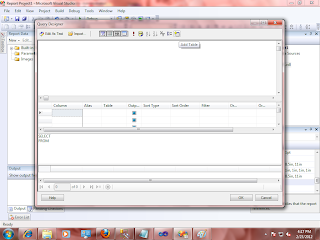
 9.For Writing Any Query Click Query Designer like Below: You Can Write Your Own Queries Here And Write Where Condition Also It will Act As Parameter


10. In this Query Designer Select Add table option.


11. In this Select Table or procedure ,View What Ever You want For Report Out put :


12. From the Toolbox Select Table Option And Drag it in the Design Page :


13.In that Select All the Fields What Ever We want for Report :


14. If we  Want Insert Image , Select Image property From the Toolbox  then Give the Proper Path From system  Or Data Base :


15. Click the Preview Page To View The Output Report :


Friday, 17 February 2012

How to Use Updateprogress control in asp.net for Image Loading


The following is the CSS for Image Loading using Updateprogress control
#overlay {
    position: fixed;
    z-index: 99;
    top: 0px;
    left: 0px;
    background-color: #f8f8f8;
    width: 100%;
    height: 100%;
    filter: Alpha(Opacity=90);
    opacity: 0.9;
    -moz-opacity: 0.9;
}           
#theprogress {
    background-color: #fff;
    border:1px solid #ccc;
    padding:10px;
    width: 300px;
    height: 55px;
    line-height:30px;
    text-align: center;
    filter: Alpha(Opacity=100);
    opacity: 1;
    -moz-opacity: 1;
}
#modalprogress {
    position: absolute;
    top: 40%;
    left: 50%;
    margin: -11px 0 0 -150px;
    color: #990000;
    font-weight:bold;
    font-size:14px;
}
Image for  Loading:
The following is the code for updateprogress control in asp.net
  <asp:UpdateProgress ID="prgLoadingStatus" runat="server" DynamicLayout="true" DisplayAfter="1" AssociatedUpdatePanelID="Updatepanel1">
    <ProgressTemplate>
        <div id="overlay">
            <div id="modalprogress">
                <div id="theprogress">
                    <asp:Image ID="imgWaitIcon" runat="server" ImageAlign="AbsMiddle" ImageUrl="~/Images/loading.gif" />
                    Please wait...
                </div>
            </div>
        </div>
    </ProgressTemplate>
</asp:UpdateProgress>

How to Create User and Give Roles in sql server 2008


How to Create User and Give  Roles in sql server 2008 :

In this article we will discuss on how to create Logins and give database level roles in SQL Server and how to assign these roles to the specific users.

So in this scenario we will create two logins one with admin role and one with readonly tester role.
So let’s start with starting the SQL Server Management Studio.

Step 1 - Start the SQL Server Management Studio and login into it using the admin credentials.

Step 2 -Expand the Security->Logins Section


Step 3 -Right Click on the Logins folder and select New Login option. Enter the login details and then click ok.


Step 4 - Similarly create another login named Tester.


Step 5 -Next expand the Database at which you want to create roles.
                                        
Step 6 - Next right click on Database roles and select new database role, give the role name, go to securables tab click on search, in the popup window select the All objects of the types option click ok, Select database as the object type and click ok. Now set the permissions to the role at the database level as shown below and then click ok


Step 7 -Now go back to the server logins double click on the created Tester login and goto user mapping tab select the db for which we have set up roles [SampleDB] then map the login to the tester role and click ok.
                                          
                                                
Step 8 - So we are done with the tester role and mapping the tester user to tester role.


Now similarly double click on the Admin login and goto user mapping tab , select the sample db, and select the inbuilt db_accessadmin and db_owner role and click ok.

Now just refresh the server. Login using the tester user and try to perform all the Select, create, insert and other operations and you will see that you will have only the select [readonly] permission on the sampleDB.

Same way login using the Admin user login and perform you will see that you can perform all the activities.
Thats it..
Hope this article will help you all ..

Thursday, 16 February 2012

How to Create Views in sql Server 2008

View:
_____


       A view is a virtual table that consists of columns from one or more tables.
 Though it is similar to a table, it is stored in the database.
 It is a query stored as an object. Hence, a view is an object that derives its data
 from one or more tables. These tables are referred to as base or underlying tables.


Views ensure the security of data by restricting access to the following data:
______________________________________________________________________________

    Specific rows of the tables.
    Specific columns of the tables.
    Specific rows and columns of the tables.
    Rows fetched by using joins.
    Statistical summary of data in a given tables.
    Subsets of another view or a subset of views and tables.


Some common examples of views are:
____________________________________

    A subset of rows or columns of a base table.
    A union of two or more tables.
    A join of two or more tables.
    A statistical summary of base tables.
    A subset of another view, or some combination of views and base table.


Creating Views:
___________________________

A view can be created by using the CREATE VIEW statement.


Syntax:
_______

CREATE VIEW view_name
[(column_name[,column_name]….)]
[WITH ENCRYPTION]
AS select_statement [WITH CHECK OPTION]

Where:

      view_name specifies the name of the view and must follow the rules for identifiers.

      column_name specifies the name of the column to be used in view. If the column_name option is not specified, then the view is created with the same columns as specified in the select_statement.

      WITH ENCRYPTION encrypts the text for the view in the syscomments table.

      AS specifies the actions that will be performed by the view.

      select_statement specifies the SELECT Statement that defines a view. The view may use the data contained in other views and tables.

      WITH CHECK OPTION forces the data modification statements to fulfill the criteria given in the SELECT statement defining the view. It also ensures that the data is visible after the modifications are made permanent.


Example:
--------------

    CREATE VIEW vwCustomer
    AS
    SELECT CustomerId, Company Name, Phone
    FROM Customers


Altering Views:
---------------------

You can modify a view without dropping it. This ensures that the permission on the view is also not lost. You can modify a view without affecting its dependent objects, such as triggers and stored procedures.

You modify a view using the ALTER VIEW statement.


Syntax:
_______

       ALTER VIEW view _name [column_ name)]
       [WITH ENCRYPTION]
       AS select_statement
       [WITH CHECK OPTION]


Dropping Views:
________________

You can drop a view from a database by using the DROP VIEW statement. When a view is dropped, it has no effect on the underlying tables. Dropping a view removes its definition and all the permissions assigned to it. Furthermore, if you query any views that reference a dropped view, you receive an error message. However, dropping a table that references a view does not drop the view automatically. You must drop it explicitly.

Syntax:
-----------

DROP VIEW view_name


Renaming Views:
_______________

You can rename a view without having to drop it. This ensures that the permissions on the view are not lost.

The guidelines for renaming a view are as follows:

    The view must be in the current database.
    The new name for the view must be followed by the rules for identifiers.
    A view can be renamed only by its owner.
    A view can also be renamed by the owner of the database.
    A view can be renamed by using the sp_rename system stored procedure.

Syntax:
--------


Sp_rename_old_viewname, new_viewname

      Where:

           old_viewname is the view that needs to be renamed.

            new_viewname is the new name of the view.

Example:
_________

           Sp_rename vwCutomers vwCustomerDetails

           Renames vwCutomers to vwCustomerDetails.